GiBi FUT Tools installs like any Chrome or Edge extension and works only inside the EA Sports FC Ultimate Team Web App. The extension does not ask for email and password: it only asks for the activation code you find in your profile on gibifut.com, after creating the free account.
Requirements
- Chrome or Edge from version 111 (Chromium browsers like Brave and Opera usually work but are not tested).
- An EA account with access to the EA Sports FC Ultimate Team Web App (you must have played at least once on console or PC).
- A GiBi account created on gibifut.com (free, active at once) and its activation code
GIBI-XXXX-XXXX-XXXX.
Step 1 · Create the account and copy the code
- 1On gibifut.com press Sign up: username, email and password (at least 6 characters). The account is active at once, no email confirmation.
- 2In your profile you find the activation code
GIBI-XXXX-XXXX-XXXXwith the Copy button. It is the only thing the extension asks for: the password stays on the site.
Step 2 · Install from the Chrome Web Store
- 1Open the GiBi FUT Tools listing in the Chrome Web Store and press Add to Chrome (on Edge: Get).
- 2Confirm the permissions: the extension only asks for storage and access to
www.ea.comand the GiBiFUT Supabase project. No other site. - 3With the store, updates arrive by themselves.
Updates
New versions arrive by themselves from the Chrome Web Store. If the Web App was open during the update, press F5. Versions that are too old are blocked with an invitation to update: in chrome://extensions press Update to force the check.
Step 3 · Open the Web App and paste the code
- 1Open the Web App after installing (or reloading) the extension: the side menu is built at login and the tool must hook it first. If the page was already open, press F5.
- 2Log in with your EA account as usual.
- 3As soon as the Web App is ready the GiBi activation screen appears: paste the code and confirm. No email, no password.
- 4At the first activation the code is bound to the EA account in use (through an anonymous fingerprint). From then on it works only with that EA account; the link can be moved once every 30 days from your profile on gibifut.com or from GiBi → Account.
Where everything is
- In the Web App side menu four new entries appear: Trader, Analysis, Album and GiBi.
- On cards the chip with the reference price; in the panel of every card the Min BIN button and, on yours, the Sell box.
- In GiBi → Status one row per component (prices, player index, shared archive, card hooks, Trader) with ✔ or ✖: a dozen seconds after login the log writes a green summary when everything is fine.
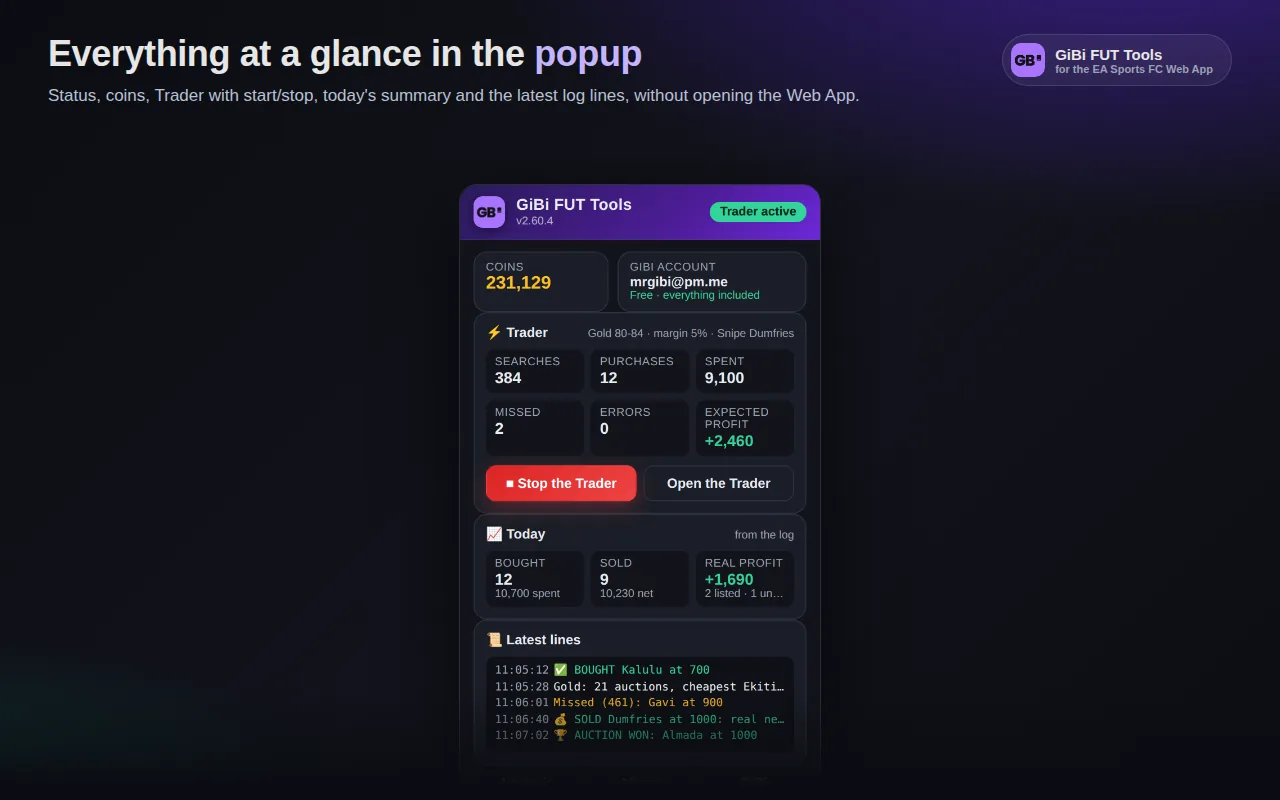
- The extension popup (icon in the Chrome toolbar) shows status, coins, Trader and the day’s recap; with the Web App closed it only has the Open the FC Web App button.
Language
The first time the extension takes the Web App language (Italian if it is in Italian, English with any other language). After that it is changed from GiBi → Settings → 🌐 Language, without reloading.